Where the history is
Tradovate's support article on running a report says reports open from the account drop-down, or by clicking the margin section of the header. The list includes orders, position history, subscriptions, cash history and client statements. Each report is filtered by timeframe.
- Open the account drop-down, or click the margin section in the header.
- Choose the report: orders for the order and fill detail, position history for closed positions, or the client statement for the official figures.
- Set the timeframe that covers the sessions you want.
- Export the report to a file.
Fills, orders and performance
An order is the instruction you sent. A fill is the price and quantity at which some or all of it executed, and one order can fill in several pieces. A performance or position report pairs fills into closed positions and totals P&L. The statement is the official record of the day, including fees.
Tiedbook's Tradovate import reads the Orders export: filled rows become executions, and canceled, working and rejected rows are skipped and listed. The Orders file has no commission column, so the account's fee preset supplies it. The Tradovate import doc covers each column.
Prop accounts on Tradovate
Some prop firms run accounts on Tradovate. Take Profit Trader's rules page names Tradovate as a data provider and as the broker for its live PRO+ accounts. Your firm's own help pages say which platform your account uses. The export steps are the same whichever firm funds the account. If you run several, the prop firm payout tracker shows how to keep fees and payouts across them.
Import the file
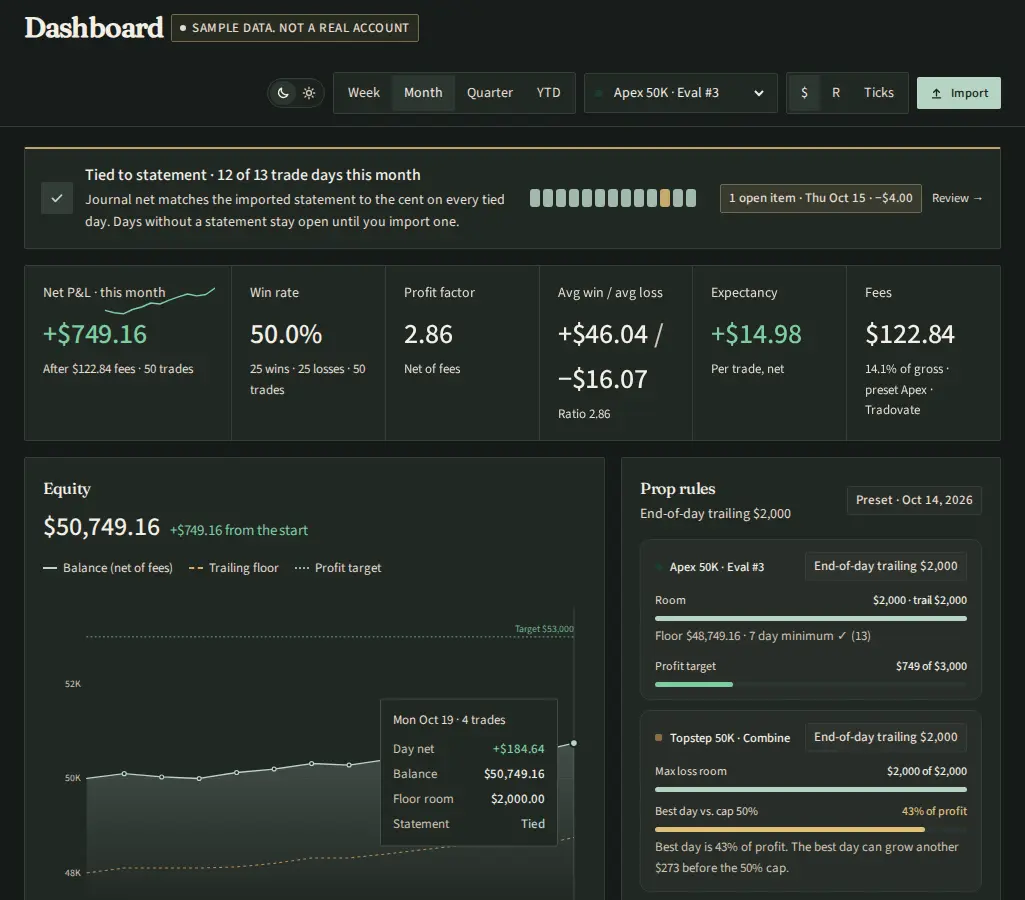
Drop the Orders CSV on Imports and read the preview: fills, skips and the dollars the fee preset added. Confirm, then import the statement or type the day's net on Reconcile. A day is tied when the journal net matches the statement to the cent. The Tradovate integration page lists what the import reads.
Sources
Verified Oct 27, 2026 on the pages below.
- Tradovate support: How can I run a report within Tradovate's platform (tradovate.zendesk.com)
- Take Profit Trader: prop firm rules (takeprofittrader.com)